
How to connect and use the Square integration
Connect your Square account with Bankful to process online payments through Square and manage your ecommerce payment activity through Bankful.
This guide covers what the integration does, how to connect, what to expect afterward, and the issues merchants run into most often.
What the Square integration does
When you connect Square to Bankful, Square acts as the processor of record. This means Square processes your transactions and funds your payouts, and Bankful gives you a single place to connect that processing to your online store.
The integration works through Bankful’s Hosted Payment Page. It is not compatible with certain native platform integrations (for example, Shopify Native) — see Troubleshooting below.
This integration currently covers online/ecommerce payments and the virtual terminal within the Bankful dashboard. (Square Point of Sale is on the roadmap but not yet available.)
What you need before you start
- An active Bankful merchant account.
- A Square account that is fully approved and enabled to accept payments. If your Square account isn’t fully set up, your location won’t be available to select in Bankful (see Troubleshooting #1).
- Your ecommerce store configured to use Bankful’s Hosted Payment Page integration.
- Your store currency set to match the currency supported by your Square account (see FAQ on currencies).
How to connect
The onboarding flow walks you through two steps after you select Square.
Step 1: Create (or sign in to) your Square account.
Watch the short walkthrough video for a guided version of these steps. From the Bankful x Square page (see screenshot below), use “Take me to Square signup.” If you already have a Square account, skip ahead to Step 2.
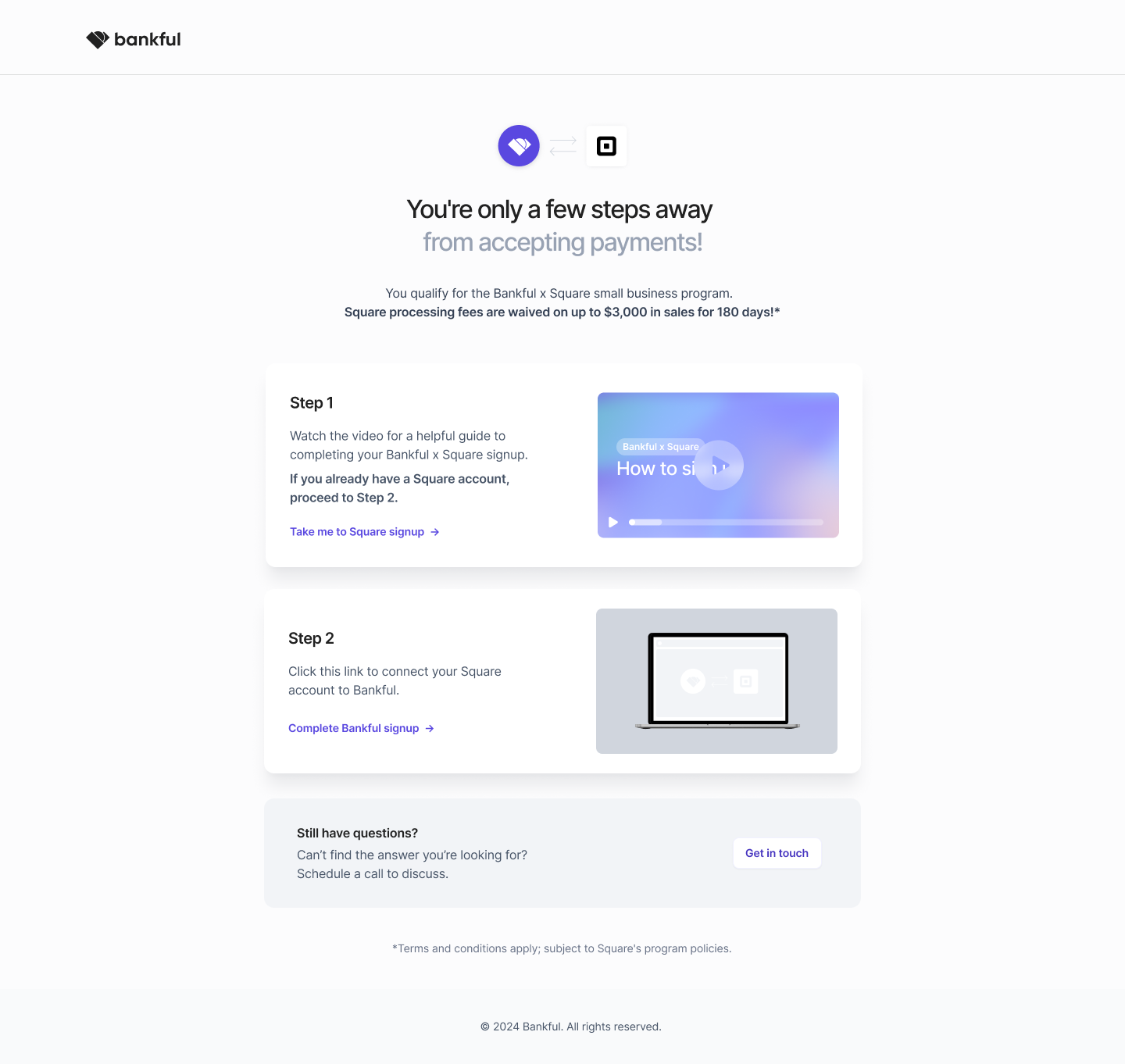
Bankful x Square integration page
You’ll complete Square’s own setup, in this order:
- Tell Square about your business (type, name, estimated revenue, address)
- Choose your business category
- Select your payment software
- Review hardware and add-on software
- Activate your account by verifying your mobile number and your identity (legal name, date of birth, last 4 of SSN/ITIN)
- Choose how you get paid (Square Checking or a linked bank account).
When you’re done, you land in your Square Dashboard.
About Square products
During signup, Square offers its full product range: Square Point of Sale, hardware such as the Square Register, Square Checking, Payroll, and more. These are Square products and are optional to the Bankful connection, which uses online/ecommerce and virtual terminal payments. Add what your business needs and skip the rest — you can add Square products later.
Step 2: Connect your Square account to Bankful.
Back on the Bankful x Square page (see screenshot below), use “Complete Bankful signup” to link your Square account to Bankful.
When you first log in to your Bankful dashboard at paybybankful.com, the connect and location screens appear automatically — you don’t need to go to Account.
Select your Square location from the drop-down. (To change your location later, go to Account (top-right) → Square Connect.)
Only locations that are active and enabled to accept payments will appear.
You’ll know it worked when your payment-enabled Square location appears and is selected in Bankful.
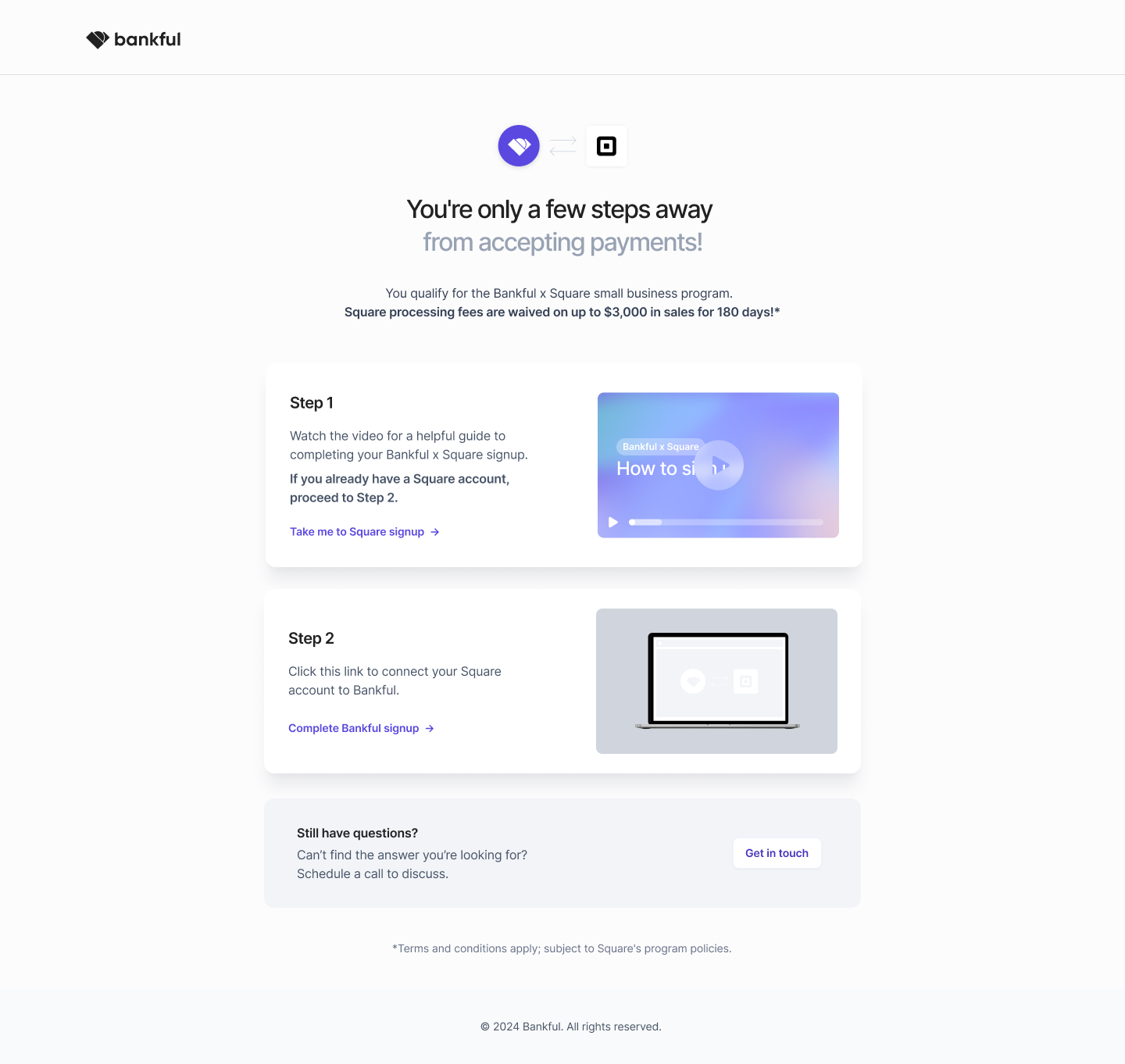
Bankful x Square integration page
After you connect
Where your connection lives.
Manage the integration from your Bankful dashboard at
paybybankful.com → Account (top-right) → Square Connect.
That’s where you change your connected location or disconnect Square.
Payouts and funding.
Because Square is the processor of record, Square processes and funds your payouts. Payout timing, funding, and payout status are all handled by Square. This means Bankful doesn’t control or display your Square payout information.
For anything about when or how you get paid, contact Square directly.
Where reporting lives.
Once your Square account is connected, your Bankful dashboard defaults to the transaction list.
Settlement and payout information is not shown in the Bankful portal — to see settlements, batches, or fees, log in to your Square portal.
Troubleshooting
1. Your Square location doesn’t appear during onboarding.
Usually the Square account isn’t fully approved or enabled to accept payments yet. Complete any outstanding setup or verification in your Square dashboard. Once Square is fully enabled to process payments, your location will become available in Bankful.
2. Your Square location shows as a random string of letters and numbers (e.g. 798G7sGd7dCX9).
This usually means the connected Square account or location has been closed or is no longer active for processing. Contact Square to check the account’s status. If you have another active Square account, disconnect the current connection in Bankful (Account → Square Connect → Disconnect Square) and connect the payment-enabled account.
3. You’re declined by Square during onboarding.
Square reviews and approves accounts based on its own eligibility requirements and policies — Bankful doesn’t control Square’s approval decisions. We provide access to integration and processing options, but approval is always determined independently by the processor. Outcomes can vary depending on their review.
Contact Square directly for details on the decision.
4. You connected Square but can’t process payments.
Square requires Bankful’s Hosted Payment Page integration and isn’t compatible with certain native integrations such as Shopify Native. Make sure you’re using the Hosted Payment Page method. If you’re on an unsupported native integration, switch to the supported method.
Still having issues? Contact us at [email protected]
Frequently asked questions
Where do my Square payouts come from?
Square is the processor of record and is responsible for processing and funding your payouts. This means Bankful doesn’t control or provide your Square payout information. For questions about payouts, funding, timing, or status. contact Square directly.
Why am I being asked to create or connect a Square account?
Depending on factors like your business type, expected processing volume, and other underwriting considerations, you may be directed to Square during Bankful onboarding. Square offers a fast approval process for eligible merchants, which makes it a convenient option for smaller businesses and startups that need to start processing quickly.
Can I change the Square location connected to Bankful?
Yes. Log in at paybybankful.com → Account (top-right) → Square Connect, then use the location drop-down to select the location you want. Available locations come from your connected Square account and must be eligible to accept payments.
Can I change the Square account connected to Bankful?
Yes. Log in at paybybankful.com → Account (top-right) → Square Connect → Disconnect Square, and confirm. After about 10 minutes, log back in and follow the prompts to connect the new account. The new Square account must be active and enabled to accept payments.
Why can’t I process payments in another currency?
Square generally restricts processing to the currency of the country where the Square account is established. If you see a currency error, make sure your store’s currency matches the currency supported by your Square account.
Why am I getting “This account has not been enabled to take payments”?
This usually means the connected Square account is no longer enabled to accept payments — it may have been closed, disabled, or restricted by Square. Contact Square directly to find out the account’s status and why it’s no longer enabled.
What happens if Square closes my account?
Square independently decides on account eligibility and processing access, and Bankful has no visibility into or control over those decisions. If Square closes or restricts your account, contact Square directly for the reason and any next steps. We understand this is frustrating. Unfortunately we don’t have visibility into or control over these decisions, as Square reviews accounts based on its internal policies and account criteria. Please note that because we are not notified of your account status, the Bankful gateway will remain open and you will continue to be invoiced.
Still have questions?
If you’re an existing Bankful merchant, the fastest way to get help is to
submit a support ticket — our team monitors the queue continuously and
you’ll get a tracked, documented response.
🎫 Submit a ticket: here
Prefer to reach us another way? We’ve got you covered:
💬 Live chat — click the chat icon in the bottom right corner of this page
📧 Email: [email protected]
📞 Phone: 888-882-9494
Last updated: September 14, 2026