
Checkout user guide with Bankful on BigCommerce
Customer Checkout Guide
What Is the Bankful Payment Widget?
The Bankful payment widget brings the checkout experience directly into your BigCommerce store — no redirects, no third-party pages, no interruptions. Your customers enter their payment details right on your checkout page, with full support for credit and debit cards, Google Pay, and US bank transfers (ACH). Every transaction is PCI Level 1 compliant and fully encrypted.
This guide walks through the complete checkout experience from storefront to order confirmation.
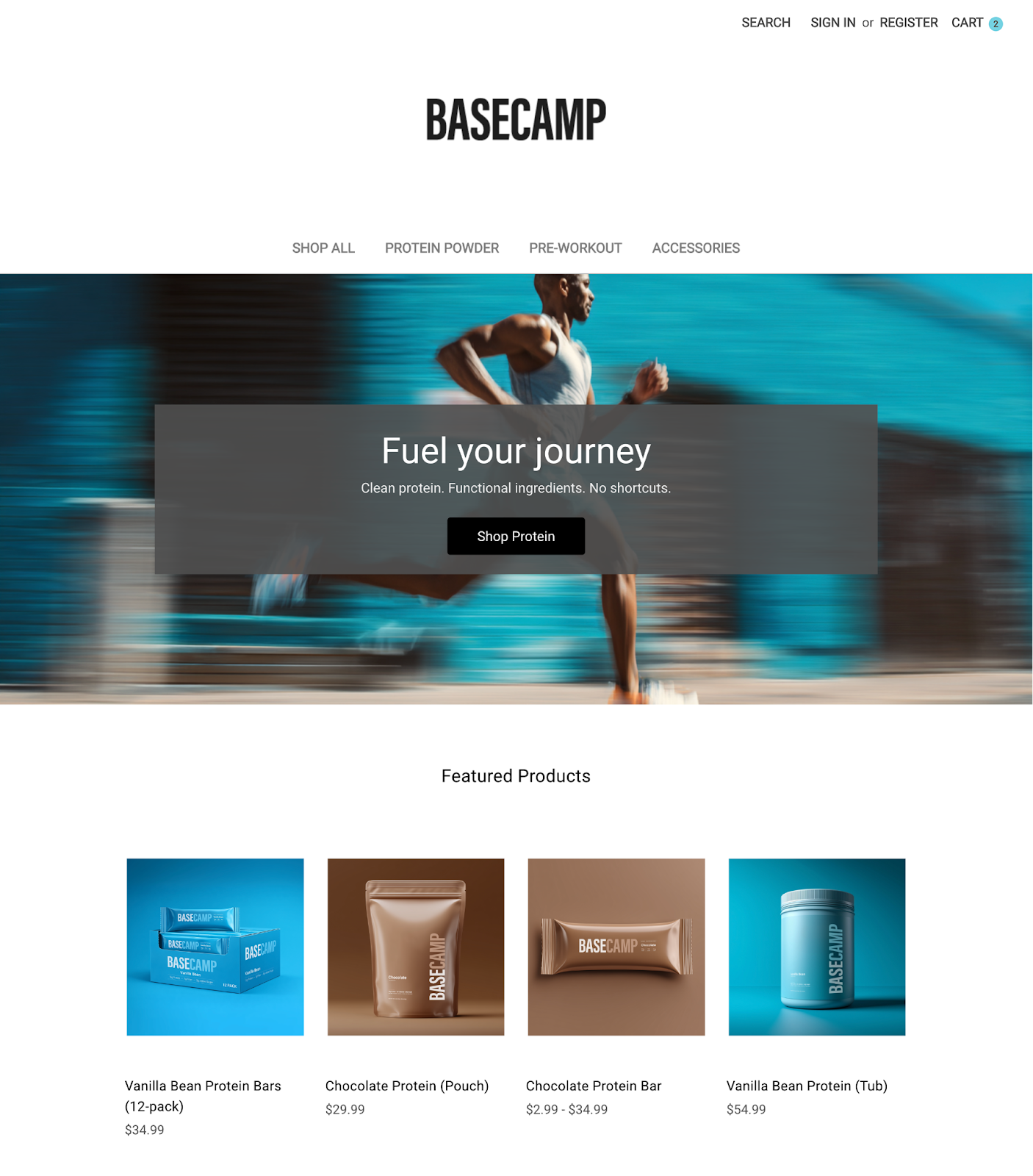
Step 1 — Browse the Product Catalog
Your BigCommerce storefront displays your full product catalog, organized by category. Customers can browse featured products, view pricing, and begin their purchase from the home page or any category page.
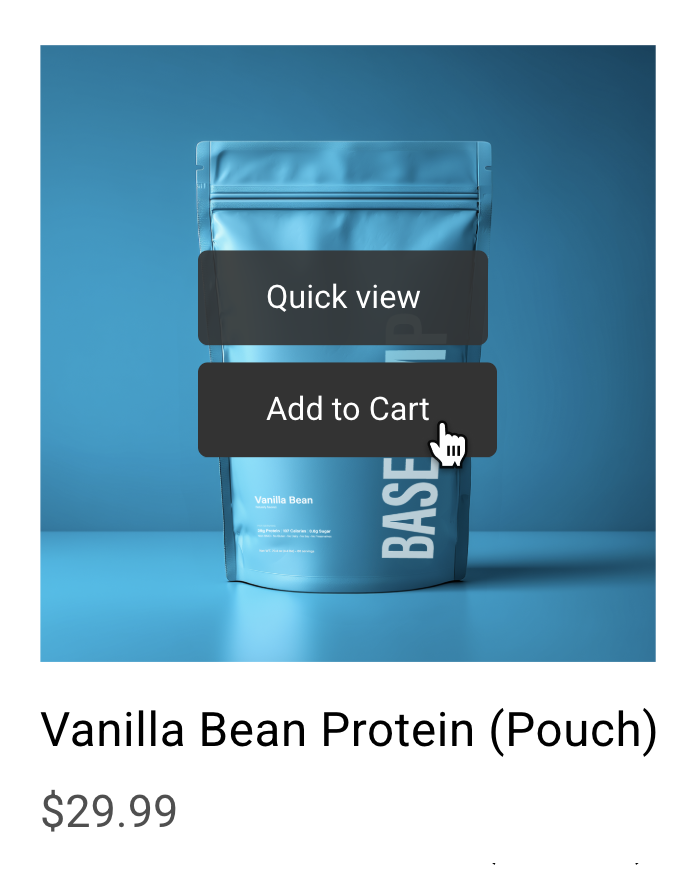
Step 2 — Select a Product and Add to Cart
When a customer hovers over a product, they see quick options to Quick View the item or Add to Cart directly from the catalog — no need to open the full product page.
Action: Click Add to Cart to add the item, then continue shopping or proceed to checkout.
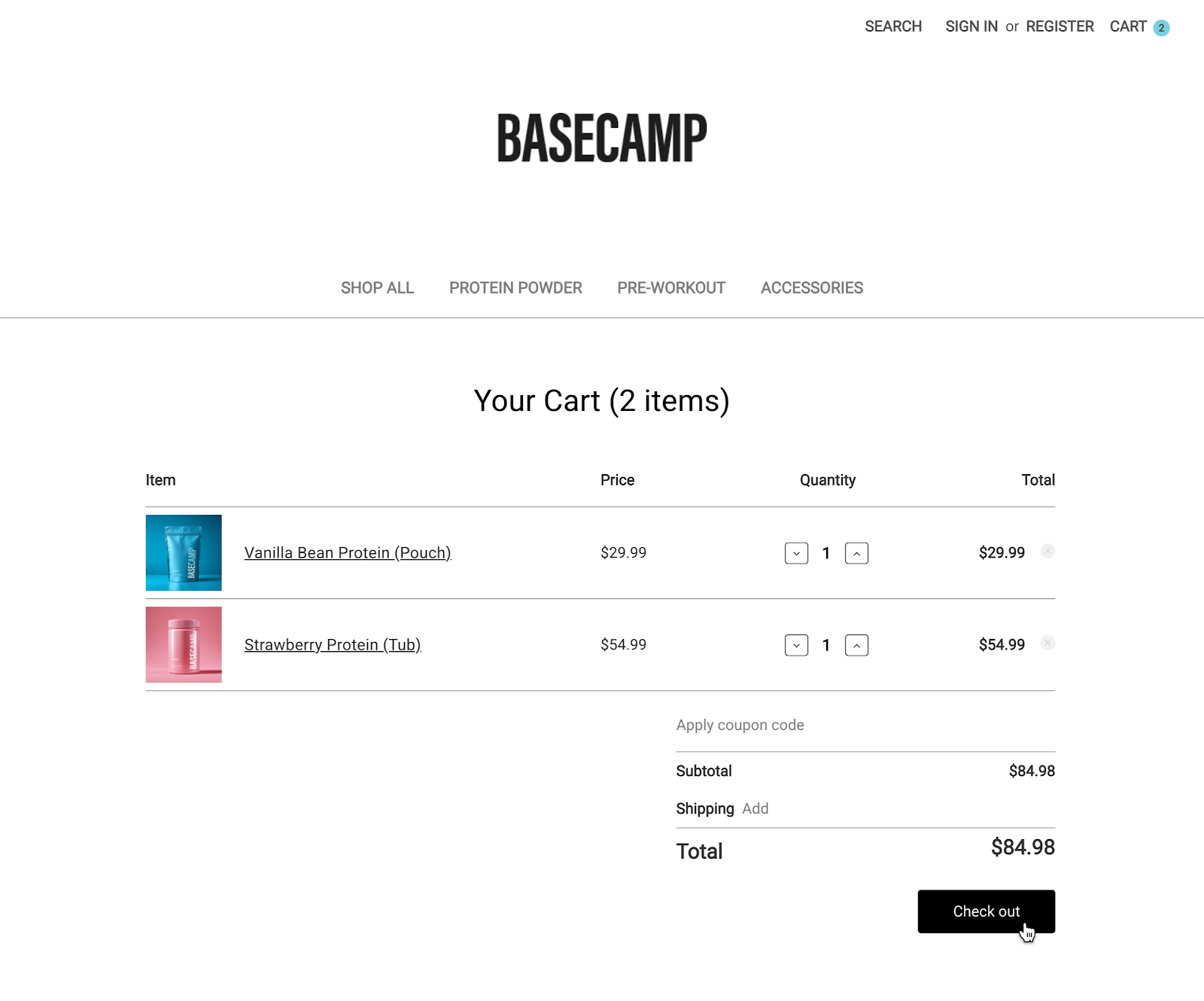
Step 3 — Review Your Cart
The cart page gives customers a clear summary of their order before they check out — items, quantities, pricing, and a running total. They can apply a coupon code, adjust quantities, or remove items here.
Action: Click Check out to proceed to the checkout page.
Step 4 — Enter Customer and Shipping Information
At checkout, customers enter their email address and continue as a guest — or click Sign in now to load their saved shipping and billing details automatically.
| 💡 Pro Tip: Returning customers who sign in can skip re-entering their address and reach the payment step in seconds. |
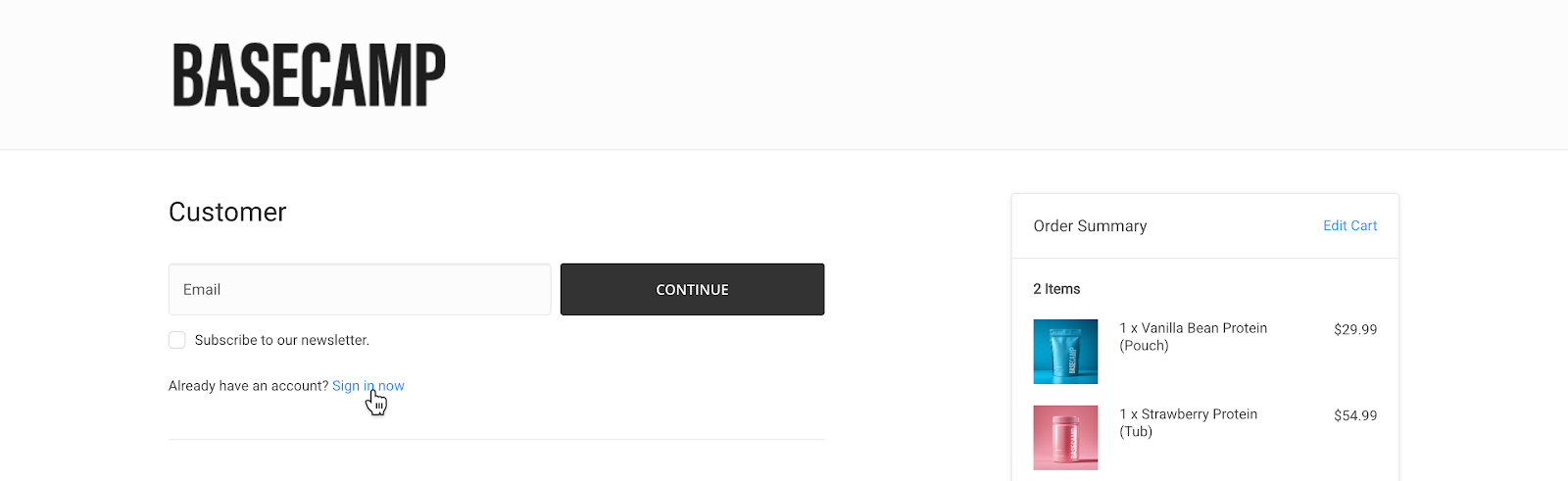
Customers can check out as a guest or sign in
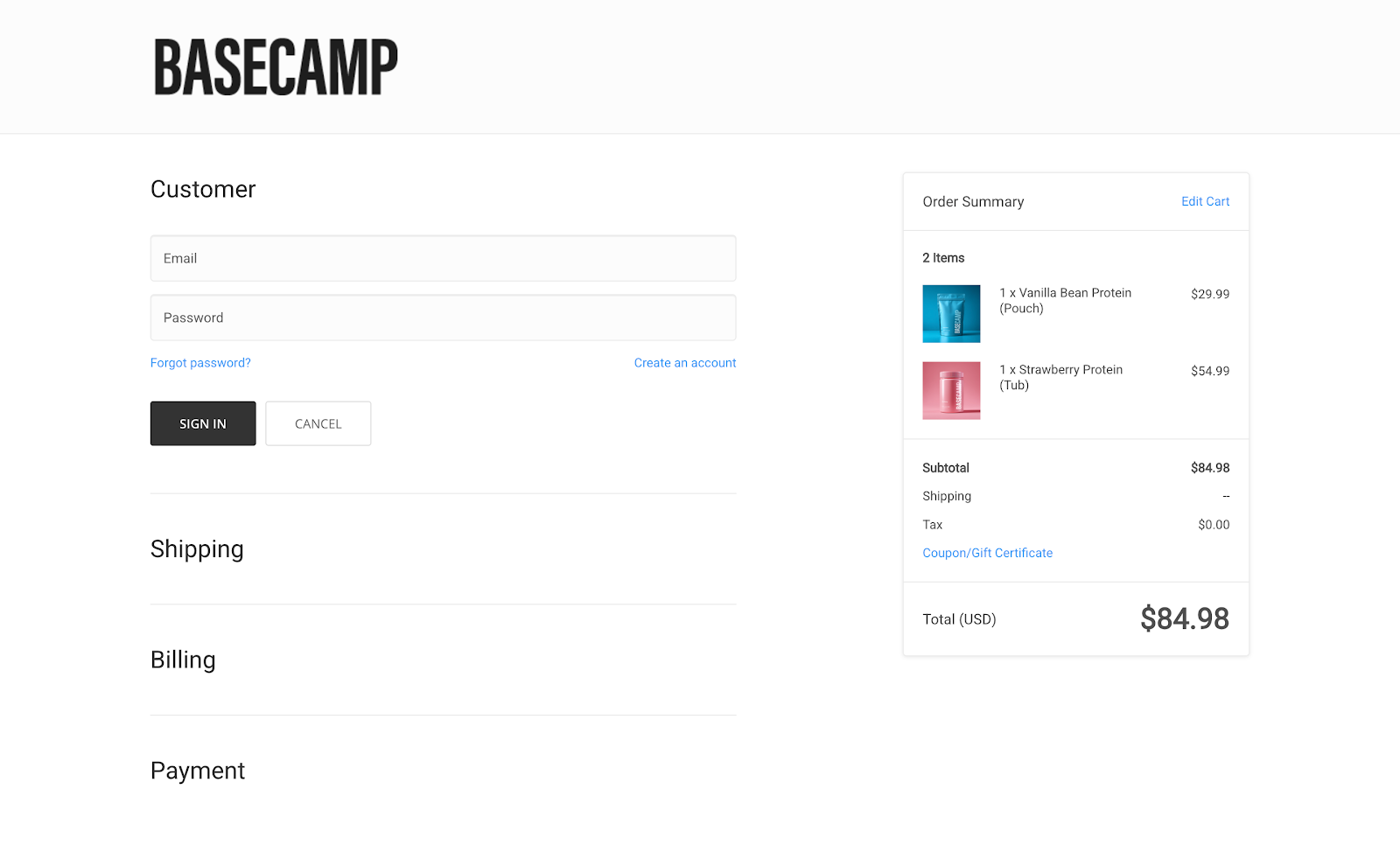
Returning customers sign in for a faster checkout experience
Step 5 — Pay with the Bankful Widget
Widget Overview
Once shipping and billing details are confirmed, customers reach the Payment section. The Bankful widget appears with your pre-selected ways to pay:
- Pay with Google Pay — one-tap payment at the top
- Card — credit or debit card entry
- US ACH — direct bank transfer
Returning customers also see a Saved accordion with their previously stored cards ready to select.
| 💡 Pro Tip: Payment happens right here on your checkout page — no redirect, no pop-up, no third-party site. Your customers never leave your store. |
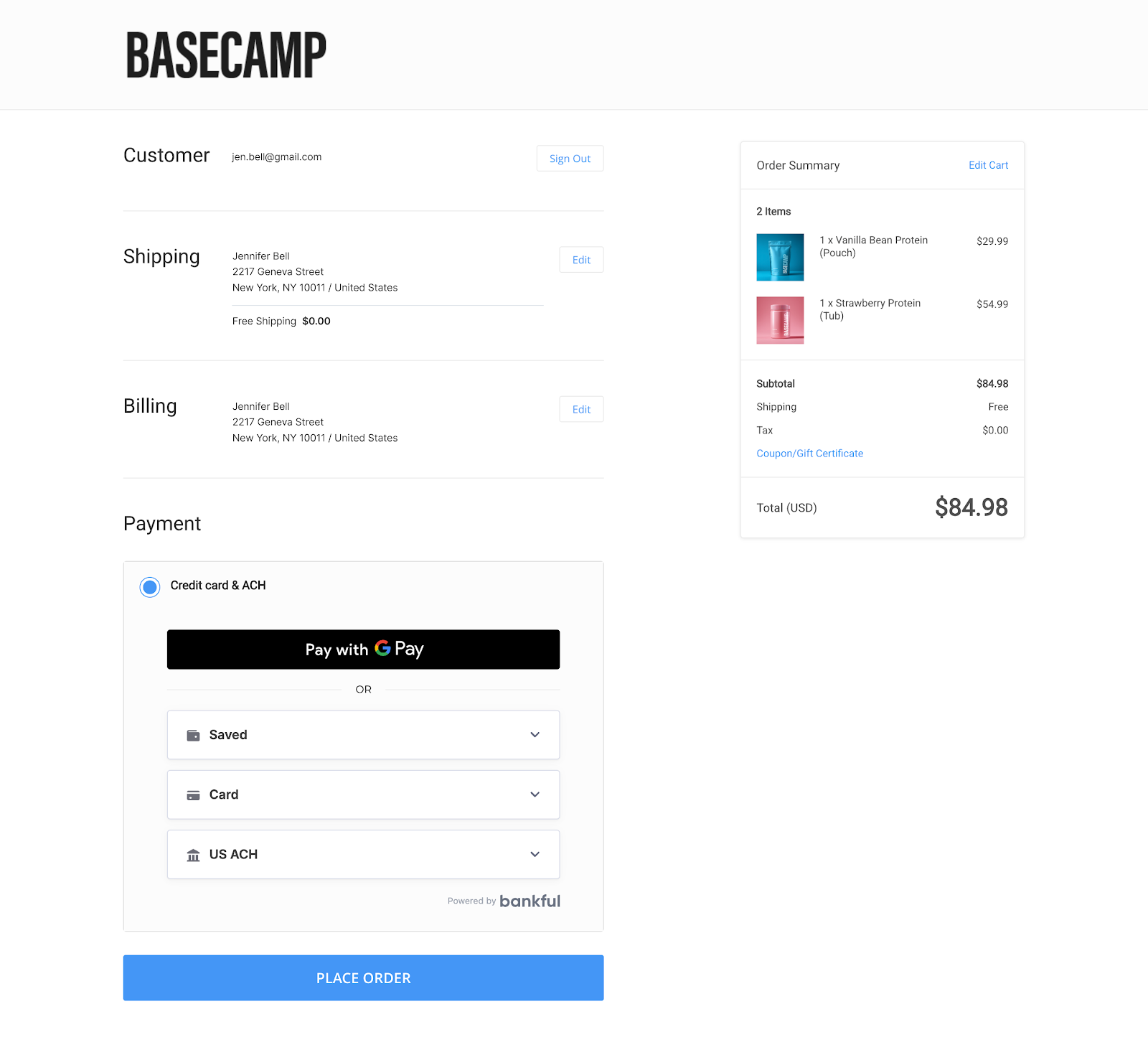
The Bankful widget embedded in your BigCommerce checkout — no redirects
Option A — Pay by Credit or Debit Card
Customers click the Card accordion to expand it and enter their payment details:
- Card number
- Expiration date
- Security code
Customers can also check “Save my information for faster checkout” to securely store their card for future purchases at any Bankful-powered store.
| 🔒 Security Note: All card data is encrypted end-to-end. Bankful never stores full card numbers. The widget confirms this with “Your payment information is encrypted and secure” on every transaction. |
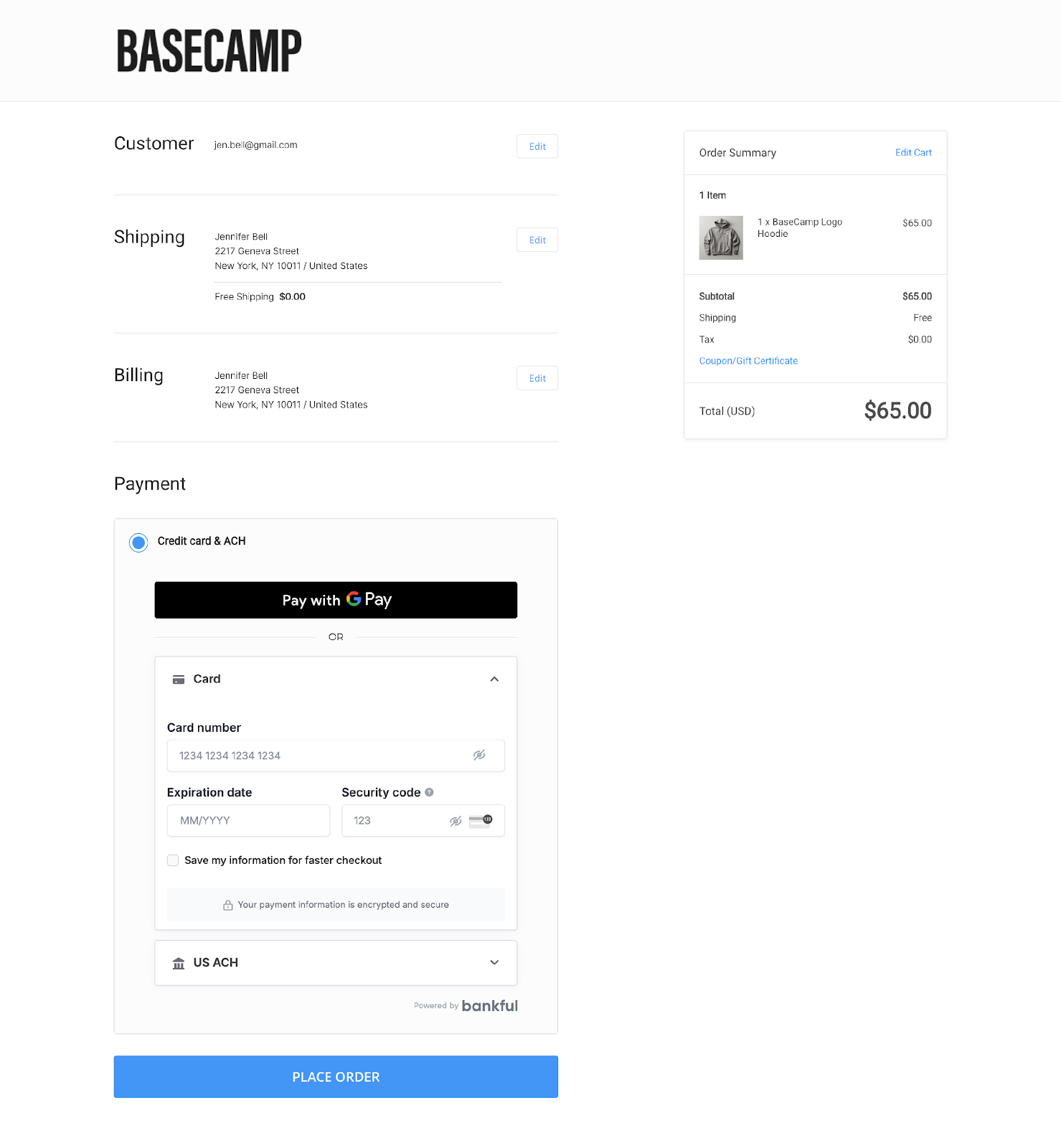
Expand the Card section to enter credit or debit card details
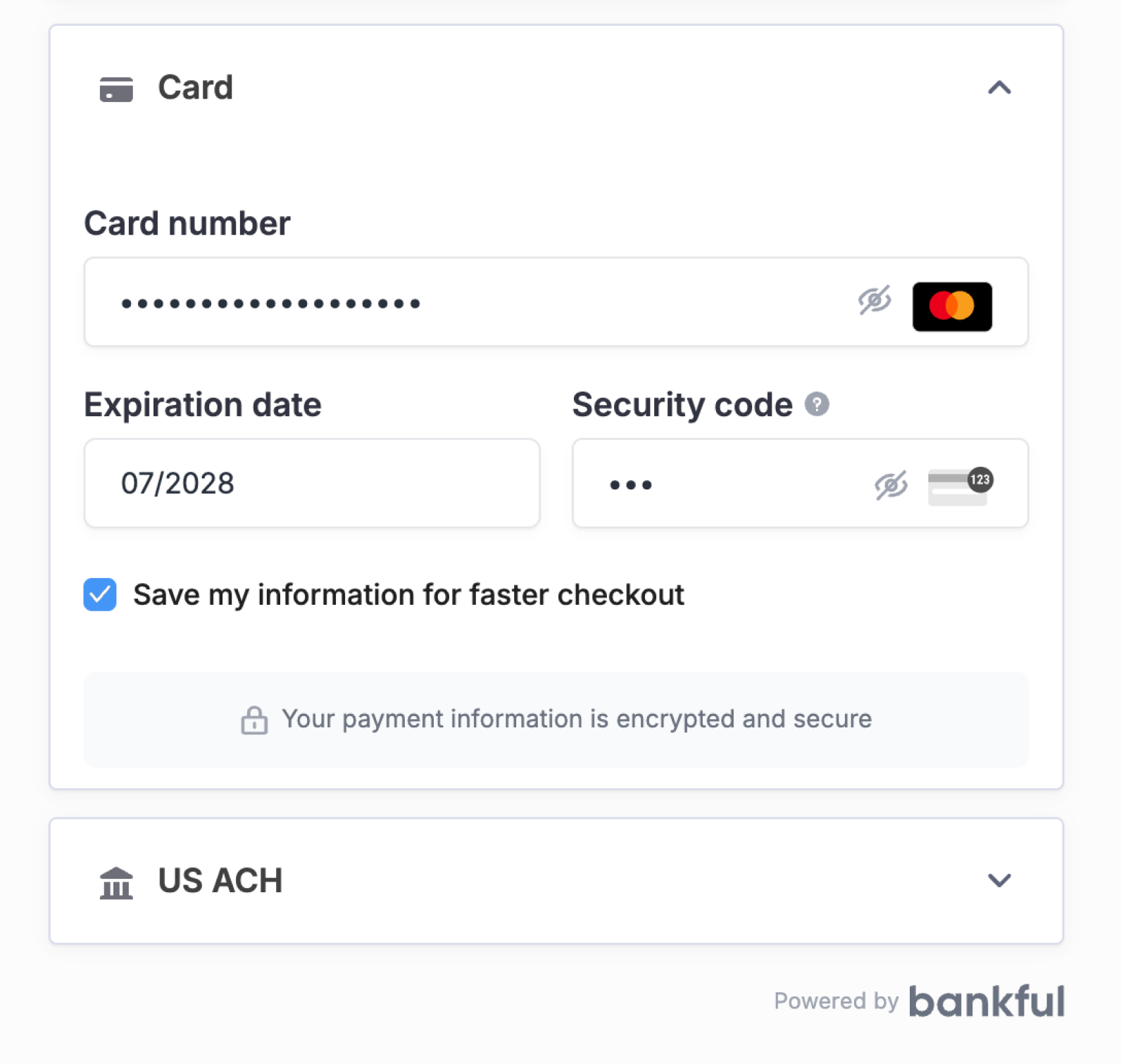
Card details are protected end-to-end with full encryption
Option B — Returning Customer One-Click Checkout
When a returning customer enters a recognized email, the Bankful widget automatically detects their account and displays a verification prompt: “We found your account!”
The customer enters the one-time code sent to their email. Once verified, their saved cards appear — they select one and click Place Order.
| 💡 Pro Tip: Saved cards work across all Bankful-powered stores. A card saved at one merchant can be used at any other — a faster experience for your most loyal shoppers. |
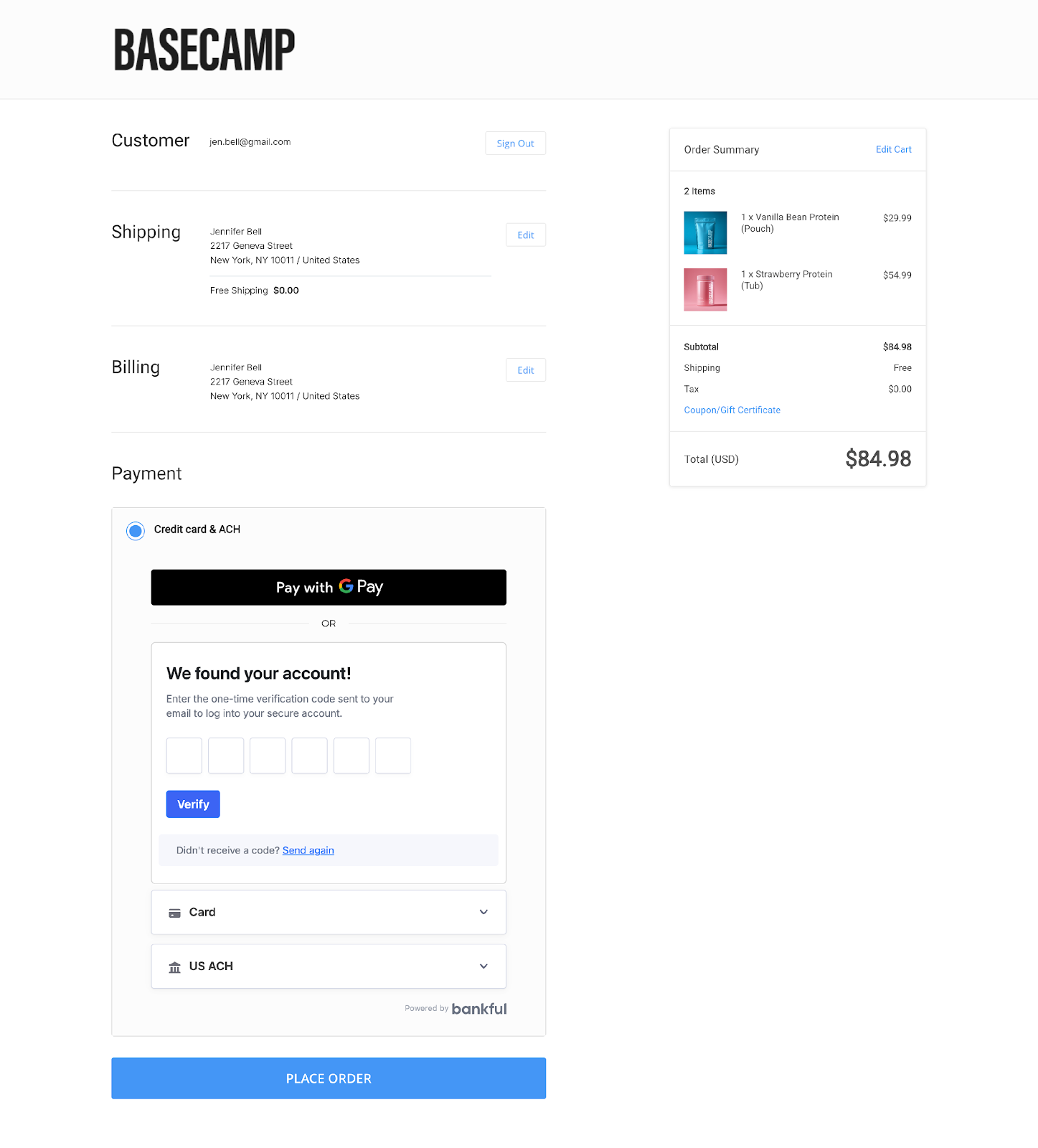
Returning customers verify with a one-time code sent to their email
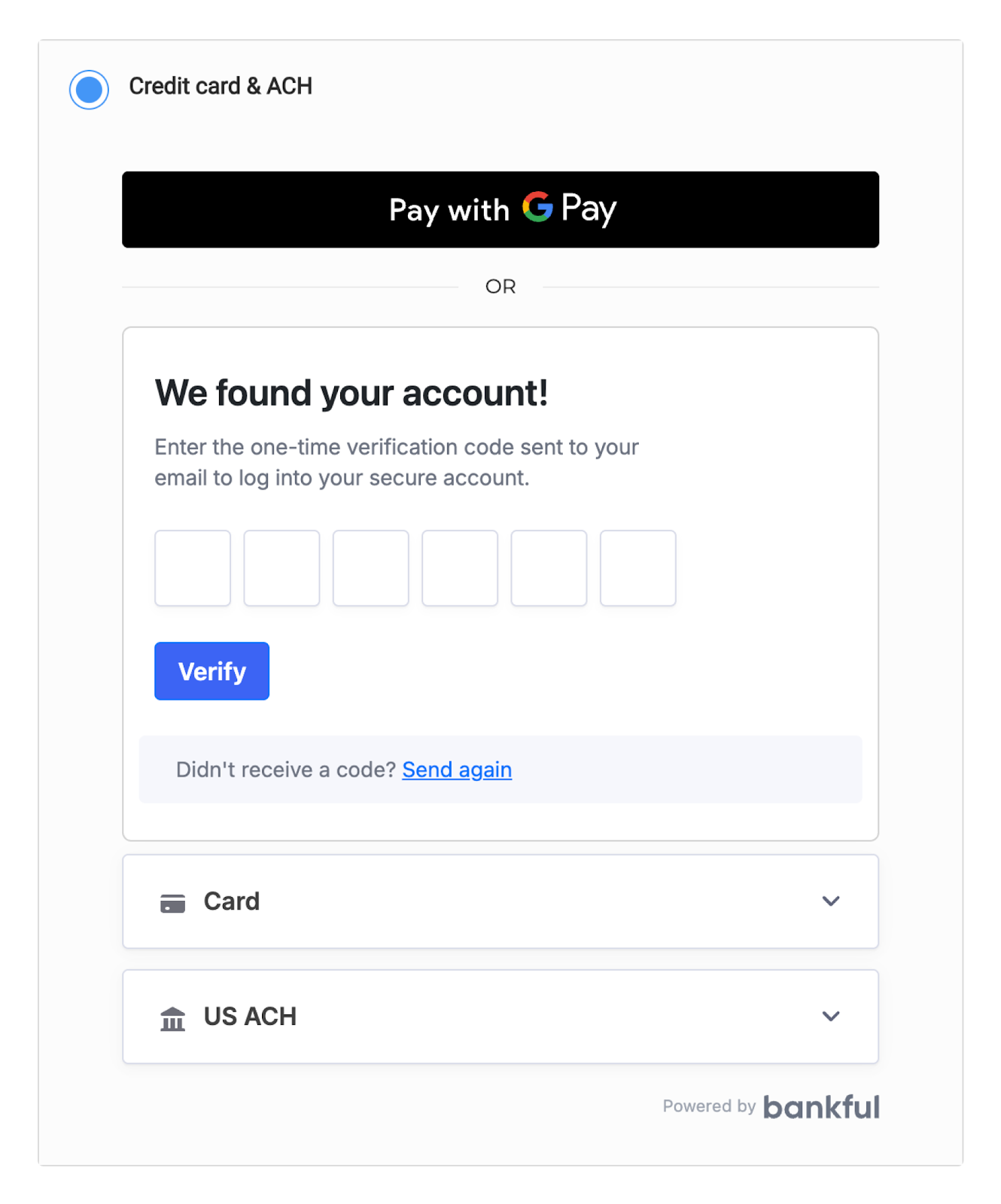
Enter the code from your email to access saved payment methods
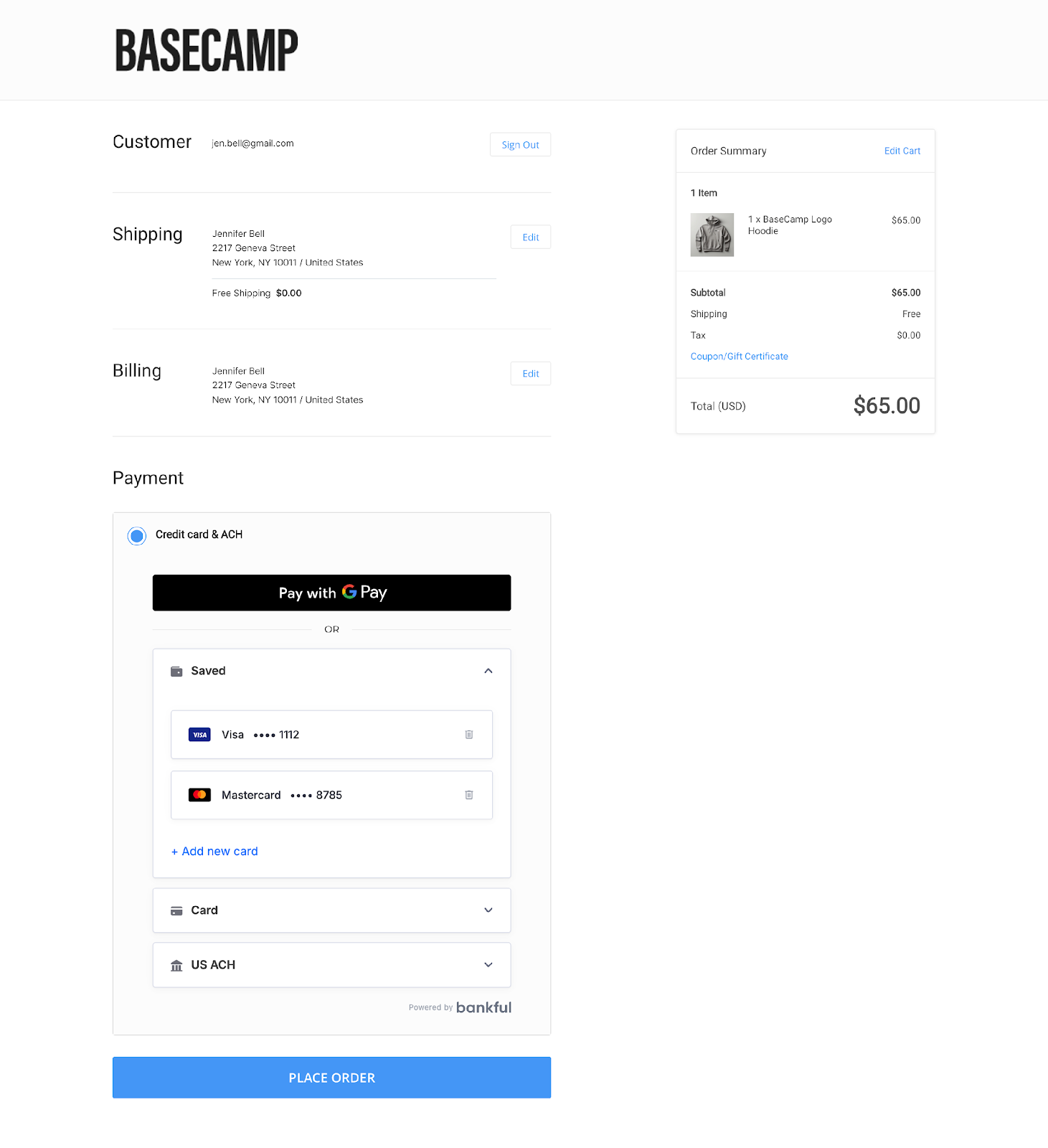
After verification, saved cards are ready to select for instant checkout
Option C — Pay by Bank Transfer (US ACH)
Customers who prefer to pay directly from their bank account can expand the US ACH accordion. The widget displays a check diagram to help locate the routing and account numbers, then prompts for:
- Routing number
- Account number
- Confirm account number
- Name of account
| 💰 Merchant Note: ACH payments carry lower processing fees than card transactions — a great option for high-value orders that saves money for both you and your customer. |
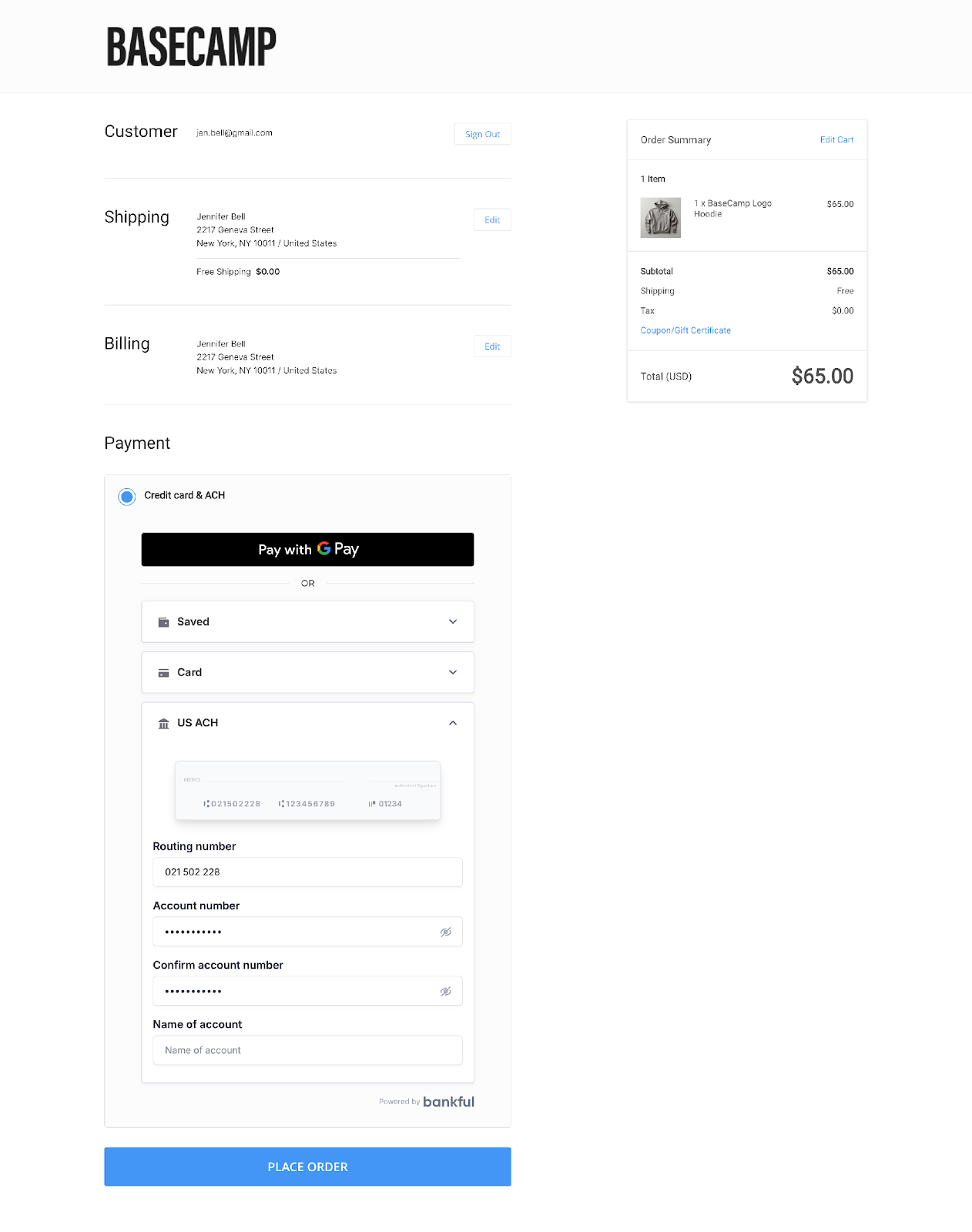
Expand US ACH to pay directly from a bank account
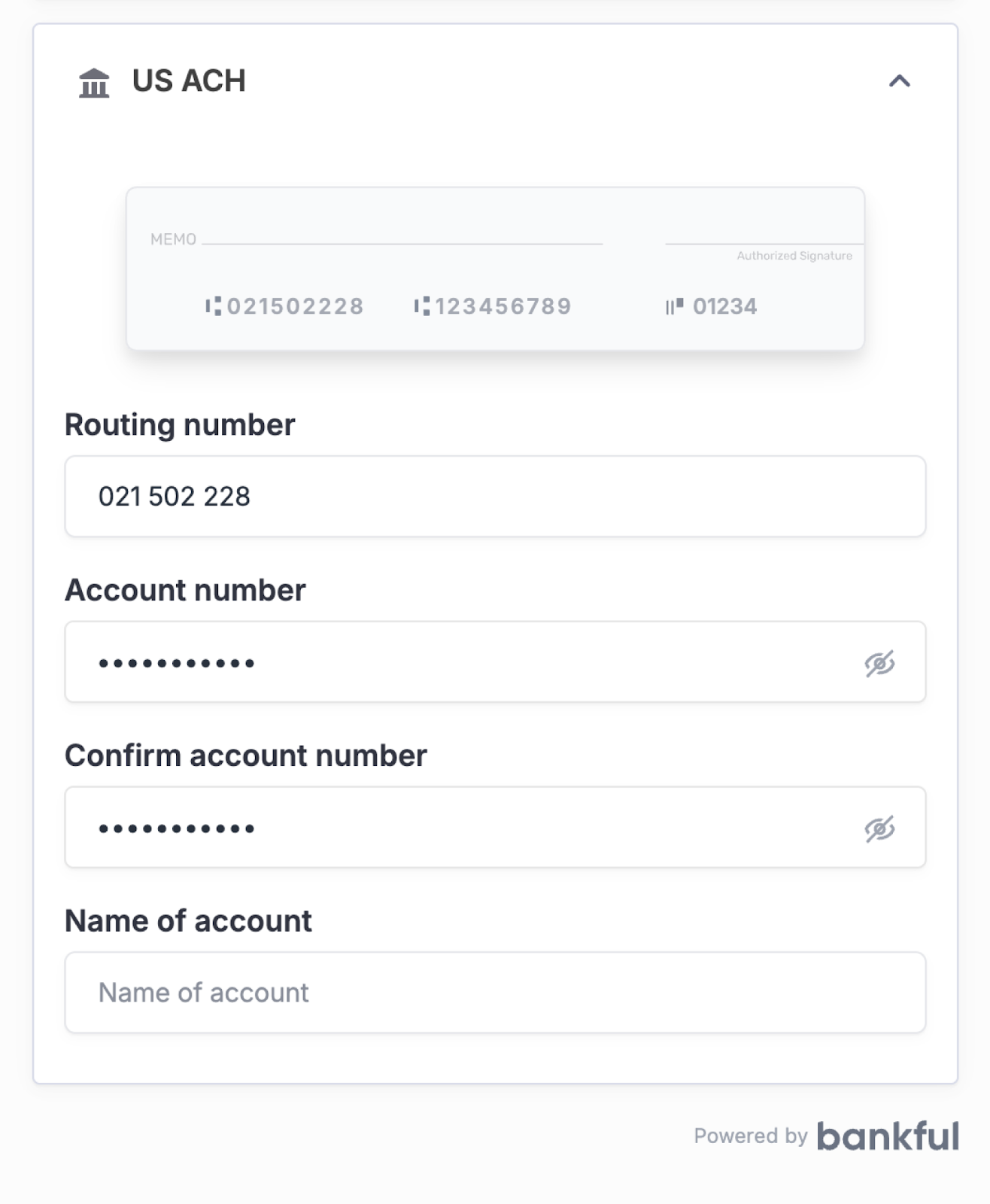
Use your check to locate your routing and account numbers
Step 6 — Place Your Order
Once the payment method is selected and details are entered, customers click the Place Order button. The order is processed securely and they are taken to the order confirmation page with a full summary of their purchase.
Powered by Bankful — PCI Level 1 compliant. Fully encrypted. No redirects.
Still have questions?
If you’re an existing Bankful merchant, the fastest way to get help is to submit a support ticket — our team monitors the queue continuously and you’ll get a tracked, documented response.
🎫 Submit a ticket: https://support.bankful.com/bankfuls-support-ticketing-system/
Prefer to reach us another way? We’ve got you covered:
💬 Live chat — click the chat icon in the bottom right corner of this page
📧 Email: [email protected]
📞 Phone: 888-882-9494
Last updated: August 2026