
Installing the Bankful payments app on BigCommerce
This guide walks through the complete process of installing and connecting the Bankful Payments app to your BigCommerce store via the BigCommerce App Marketplace.
Estimated time: 5–10 minutes
Before You Begin
Make sure you have the following before starting:
- Active Bankful account — contact your Bankful representative if you don’t have one yet
- BigCommerce store admin access — you’ll need permission to install apps
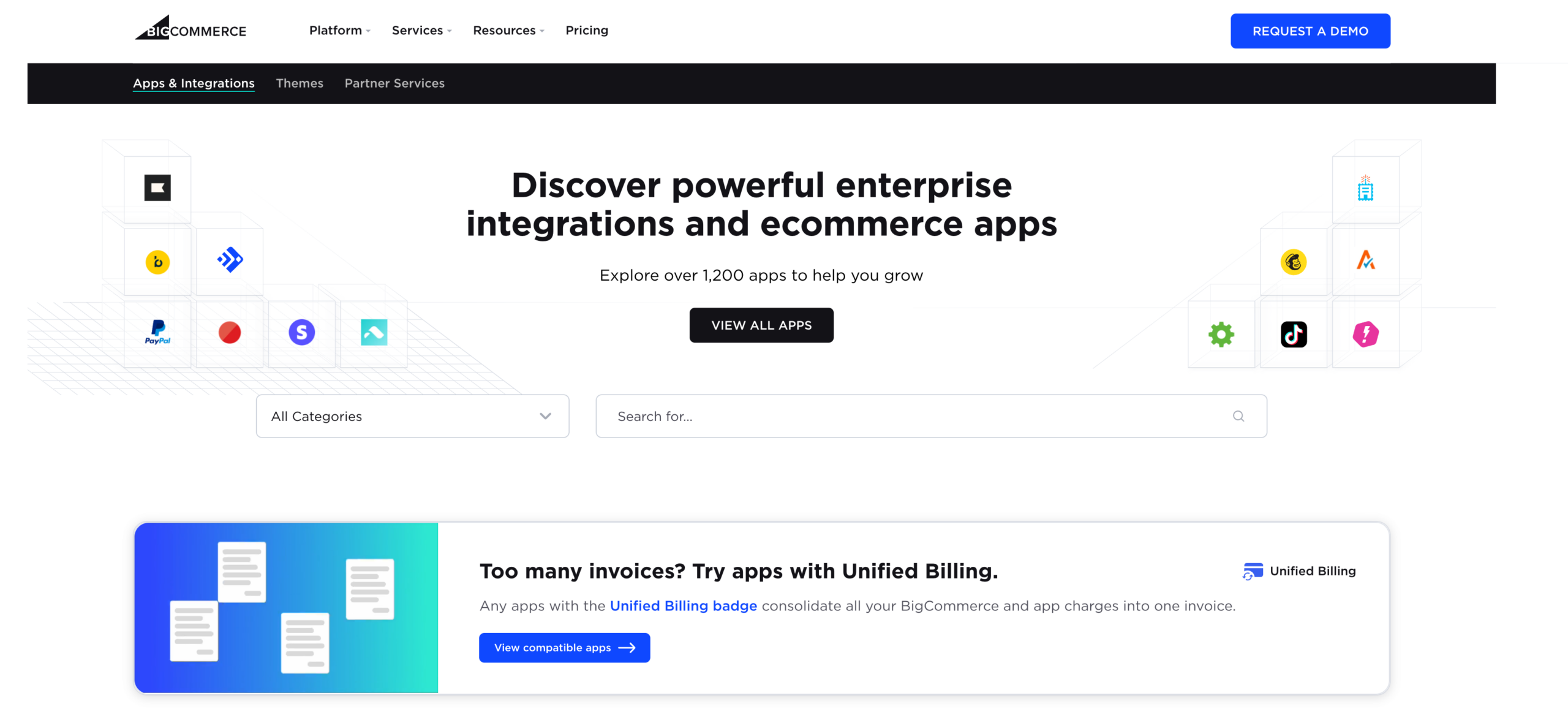
Step 1 — Find the Bankful Payments App
Go to the BigCommerce App Marketplace here. You can access it two ways:
- From your BC admin: click Apps → App Marketplace in the left sidebar
- Directly: visit the app store here.
In the search bar, type Bankful and press Enter.
Step 2 — Open the App Listing
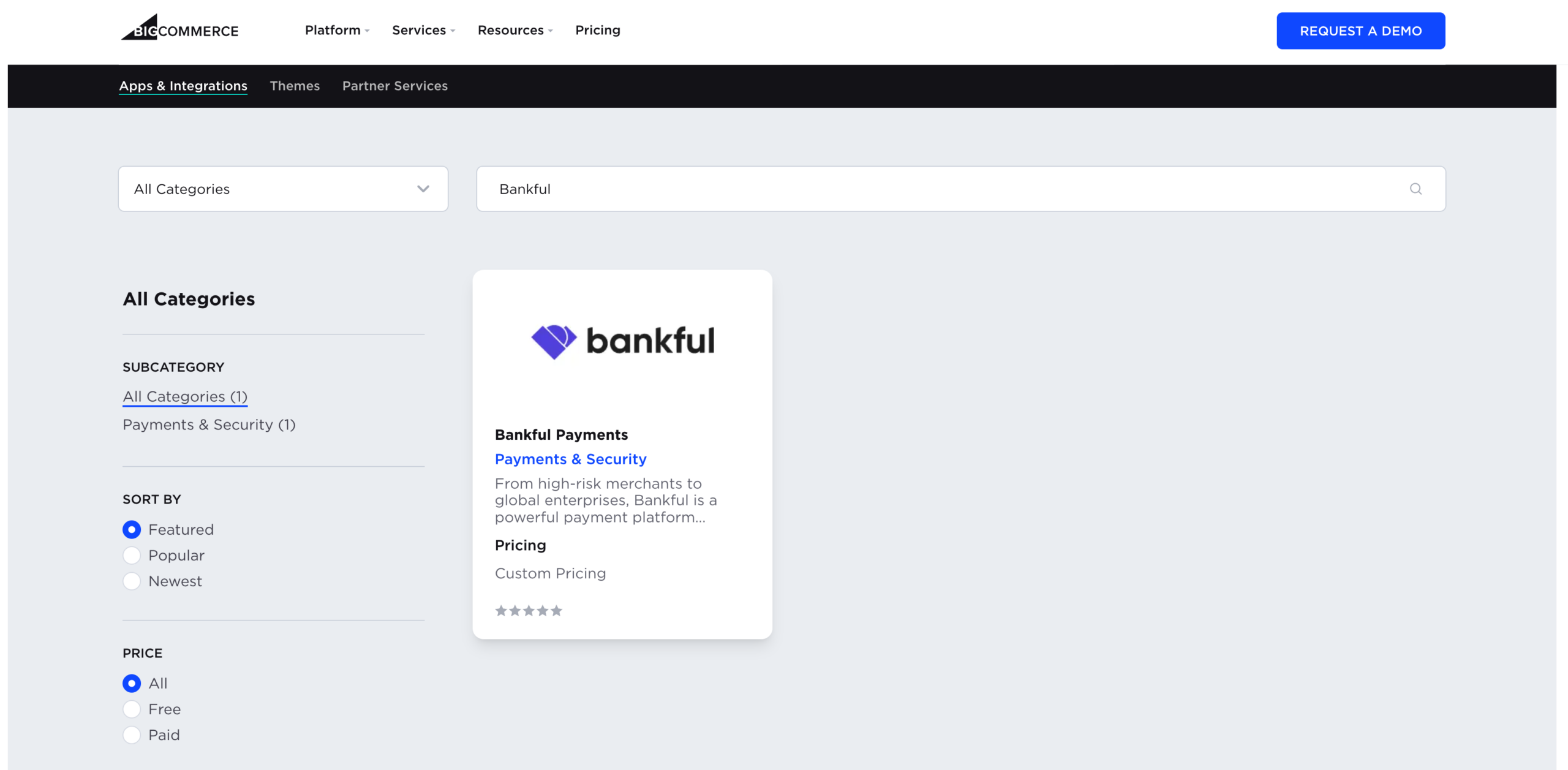
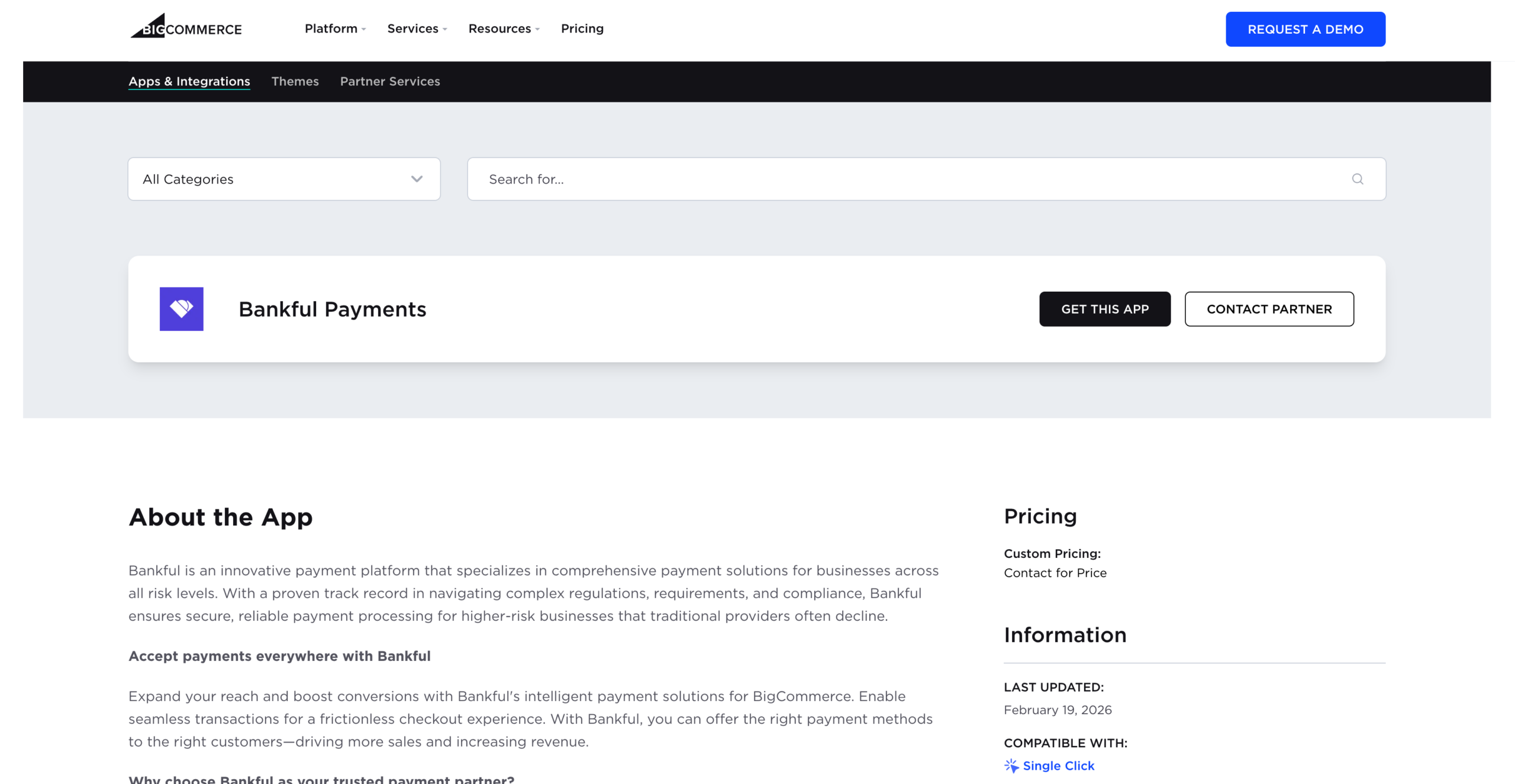
Click on the Bankful Payments card in the search results. On the app detail page, click GET THIS APP.
Step 3 — Select Your Installation Path
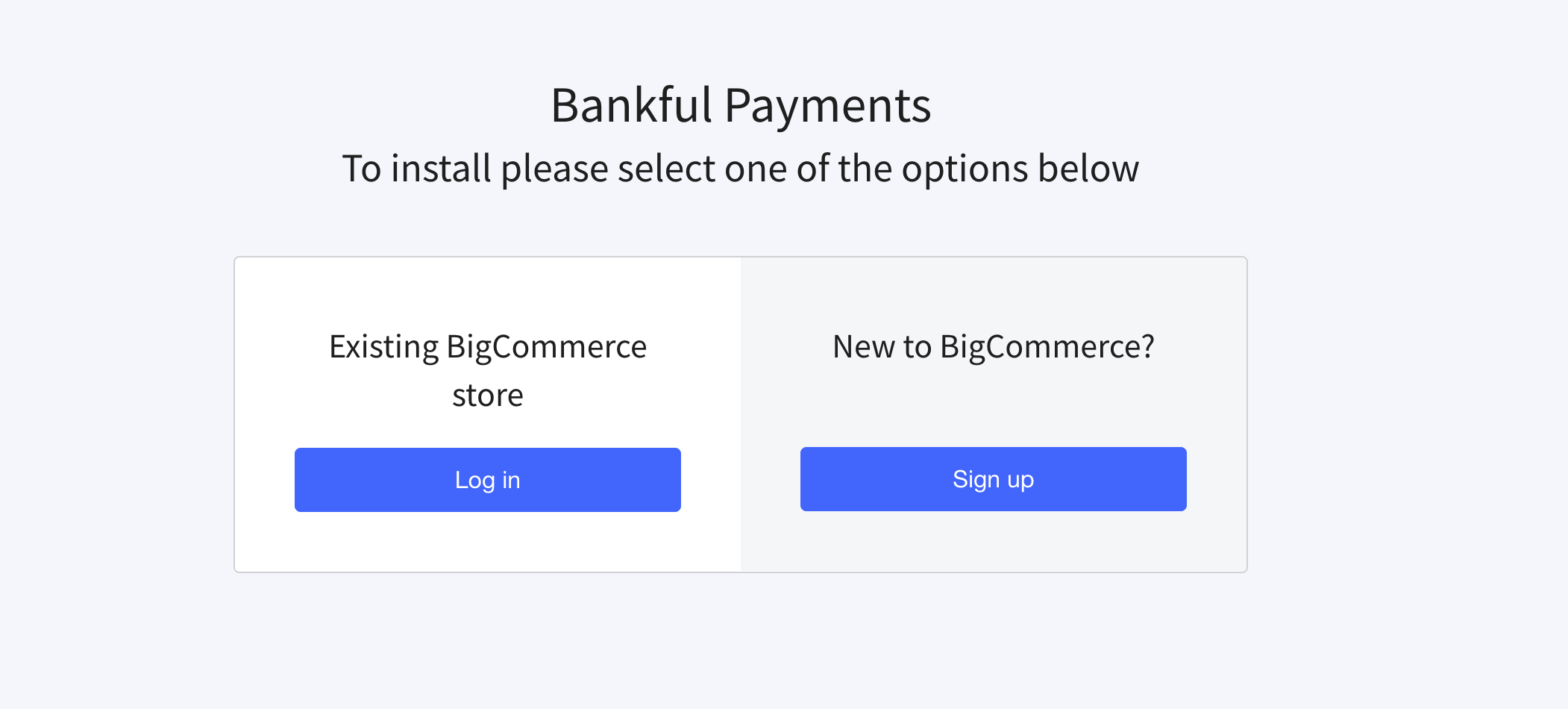
Bankful’s installation page will open, asking you to choose one of two options:
- Existing BigCommerce store — click Log in if you already have a BigCommerce store
- New to BigCommerce? — click Sign up to create a new BigCommerce store first
- For most merchants, click Log in.
Step 4 — Connect Your BigCommerce Account
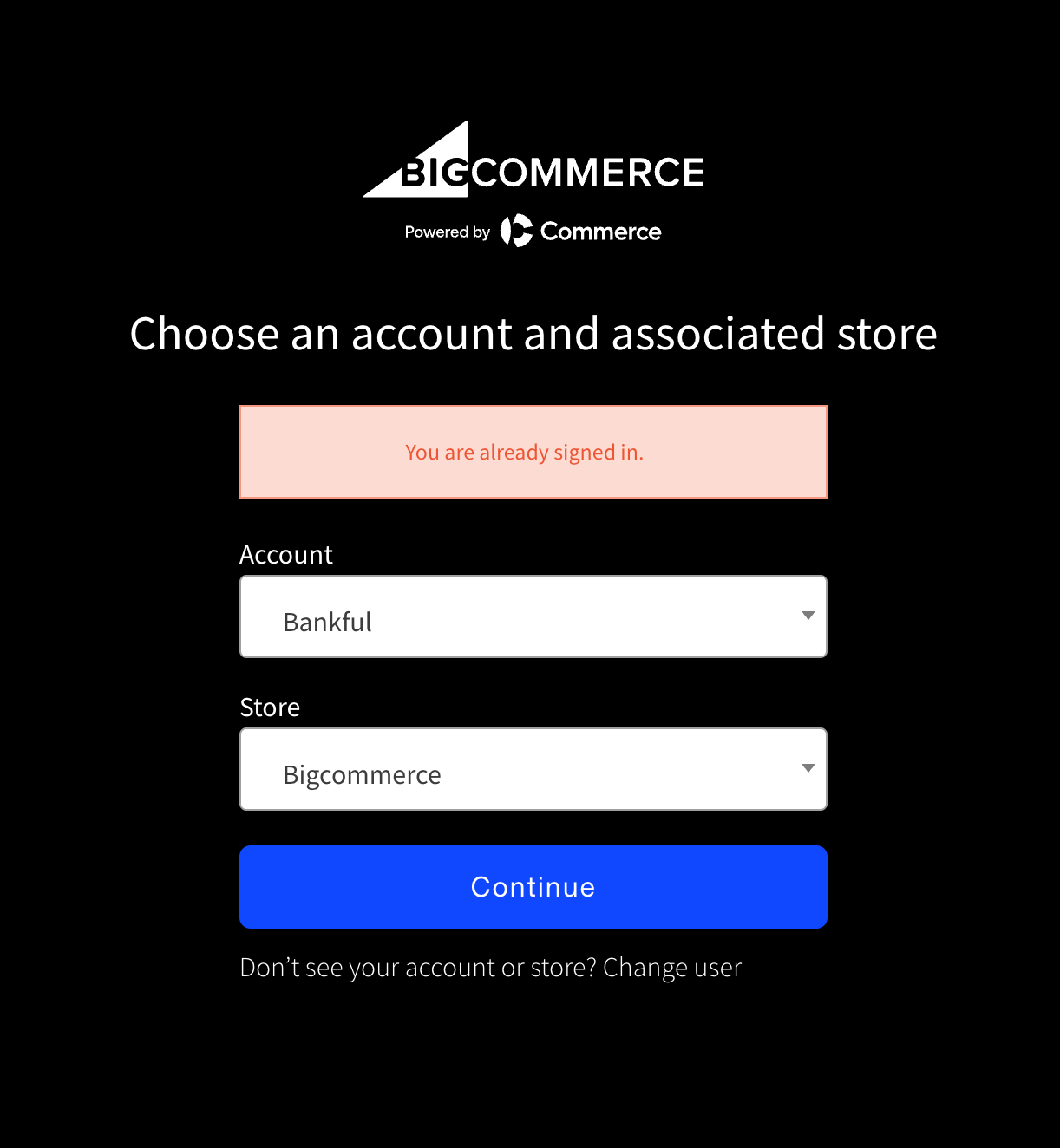
BigCommerce will prompt you to choose the account and store to connect. Select your Account and Store from the dropdowns, then click Continue.
Step 5 — Install the App
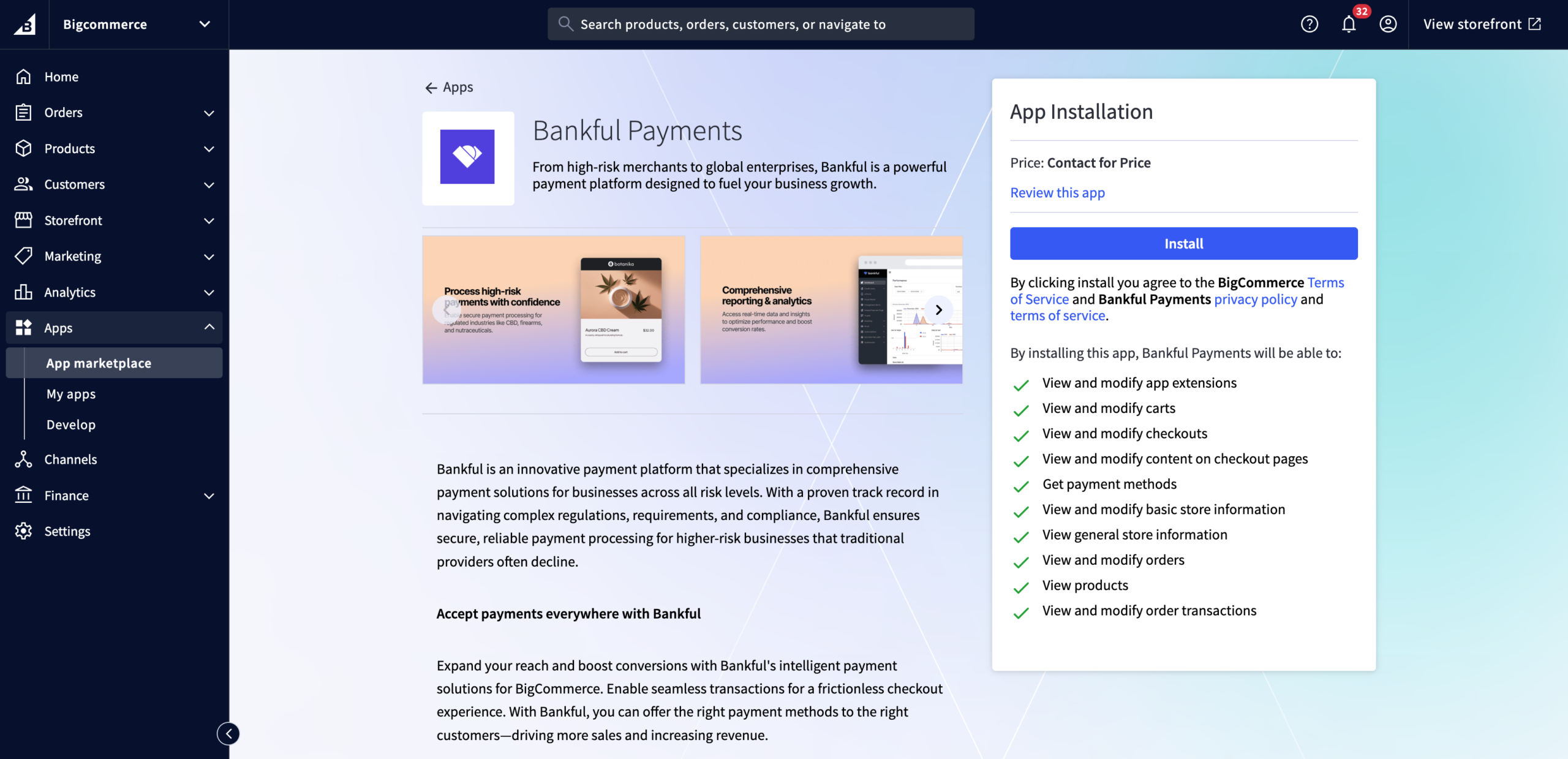
You’ll be redirected back to your BigCommerce admin, where the App Installation panel will appear. Review the list of permissions Bankful Payments will receive, then click Install.
Step 6 — Confirm Permissions
A confirmation screen will appear listing all permissions and a PCI-DSS acknowledgment. Check the acknowledgment box to confirm, then click Confirm.
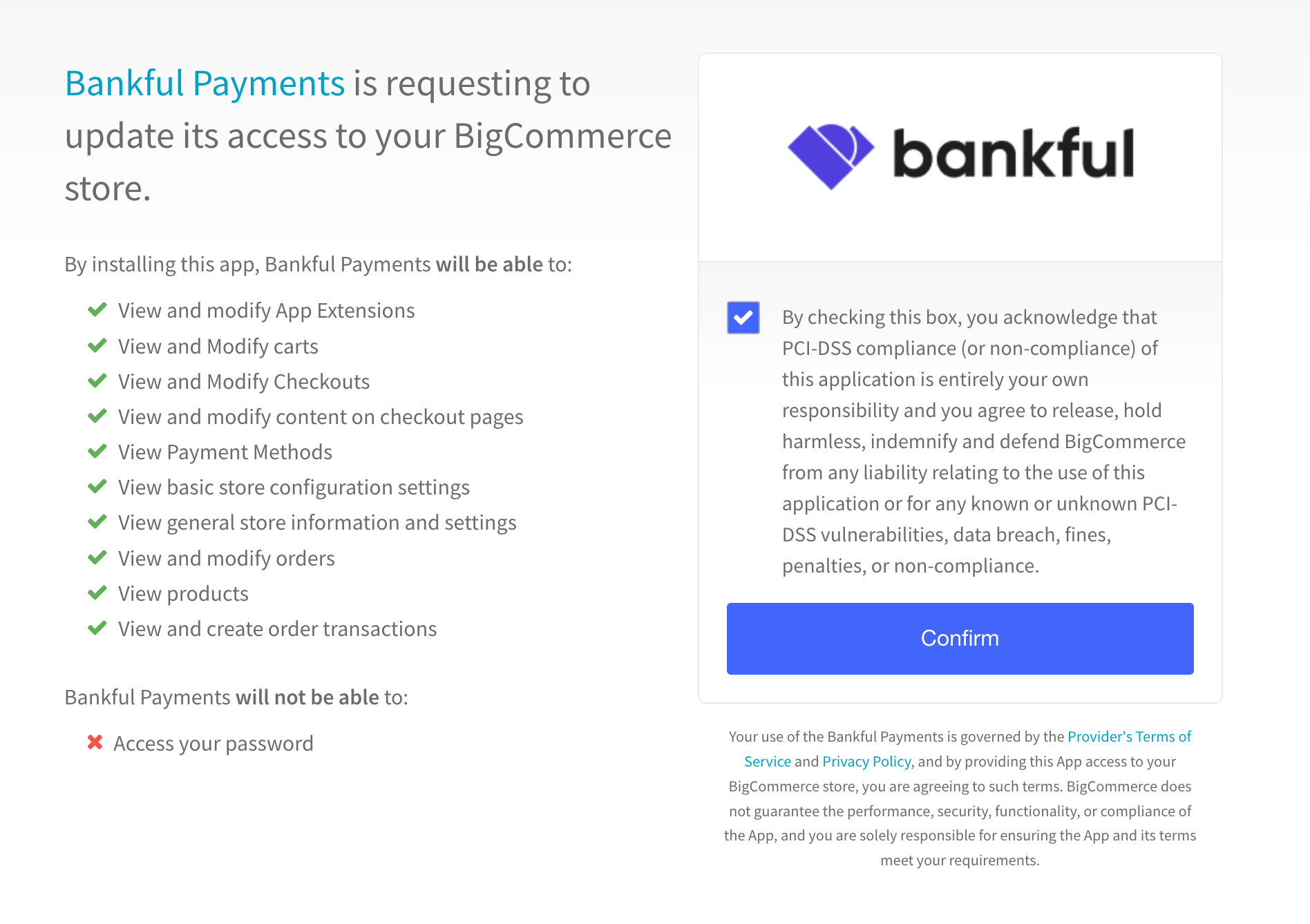 |
| 🔒 Security Note: By checking this box you acknowledge that PCI-DSS compliance of the application is your responsibility. Bankful is PCI Level 1 certified, the highest level of payment security compliance. |
Step 7 — Enter API Credentials
To connect Bankful to your BigCommerce store, you’ll need to enter your API credentials from your Bankful dashboard.
To locate your credentials:
- Copy your API Key and API Secret directly from the dashboard — copy and paste these exactly to avoid errors
- Log in to your Bankful dashboard at www.paybybankful.com
- Click your Account name in the upper right corner to open the dropdown menu
- Select API Credentials from the dropdown
Back in BigCommerce, paste your credentials into the corresponding fields on the configuration screen, then click Update Configuration.
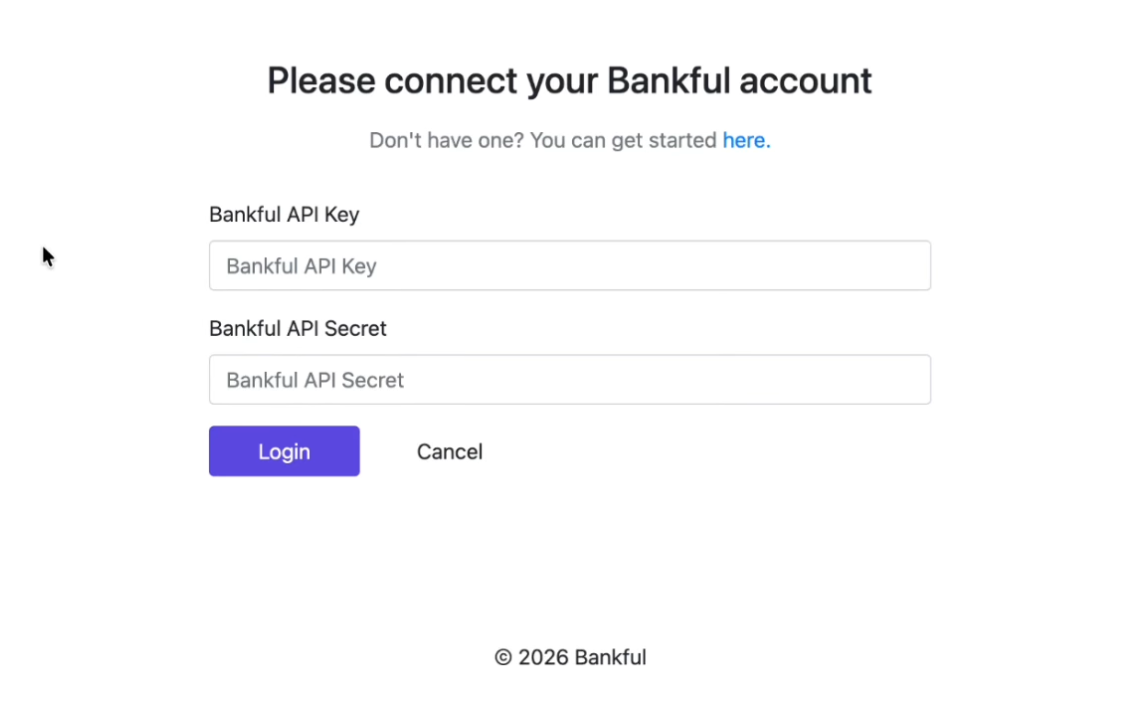
💡 Pro Tip: Always copy and paste your API credentials directly from the Bankful dashboard — do not type them manually. A single incorrect character will prevent the connection from completing.
If you have any issues with your API credentials, try uninstalling the Bankful app from your BigCommerce store and reinstalling it — this resets the configuration screen so you can re-enter your credentials fresh.
Step 8 — Configure Bankful
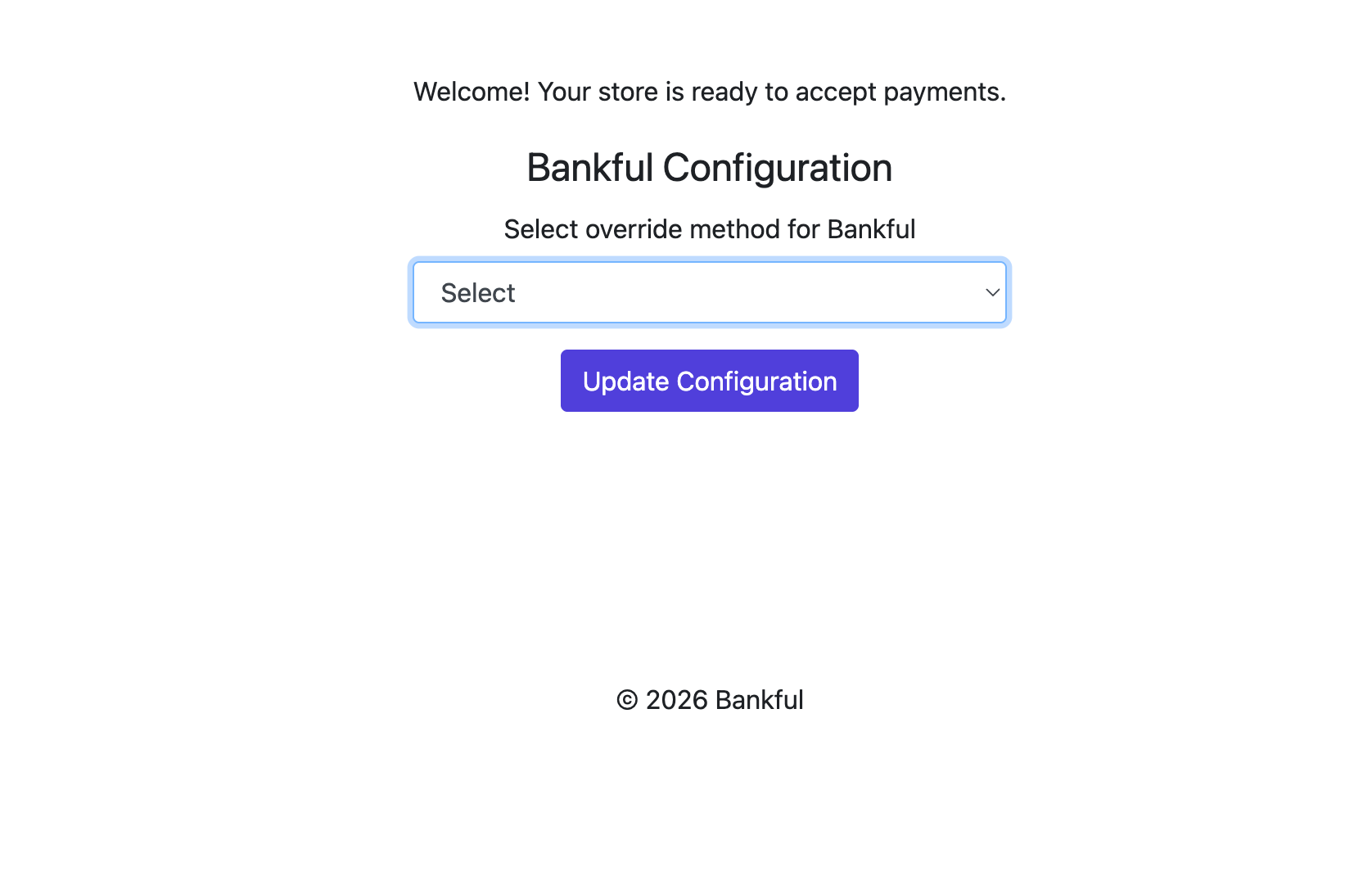
After confirming, you’ll be taken to the Bankful Configuration page. You’ll see the message: “Welcome! Your store is ready to accept payments.”
From the Select override method for Bankful dropdown, choose your preferred offline payment method override (e.g., Bank deposit). Then click Update Configuration.
A “Saved successfully!” confirmation message will appear in green.
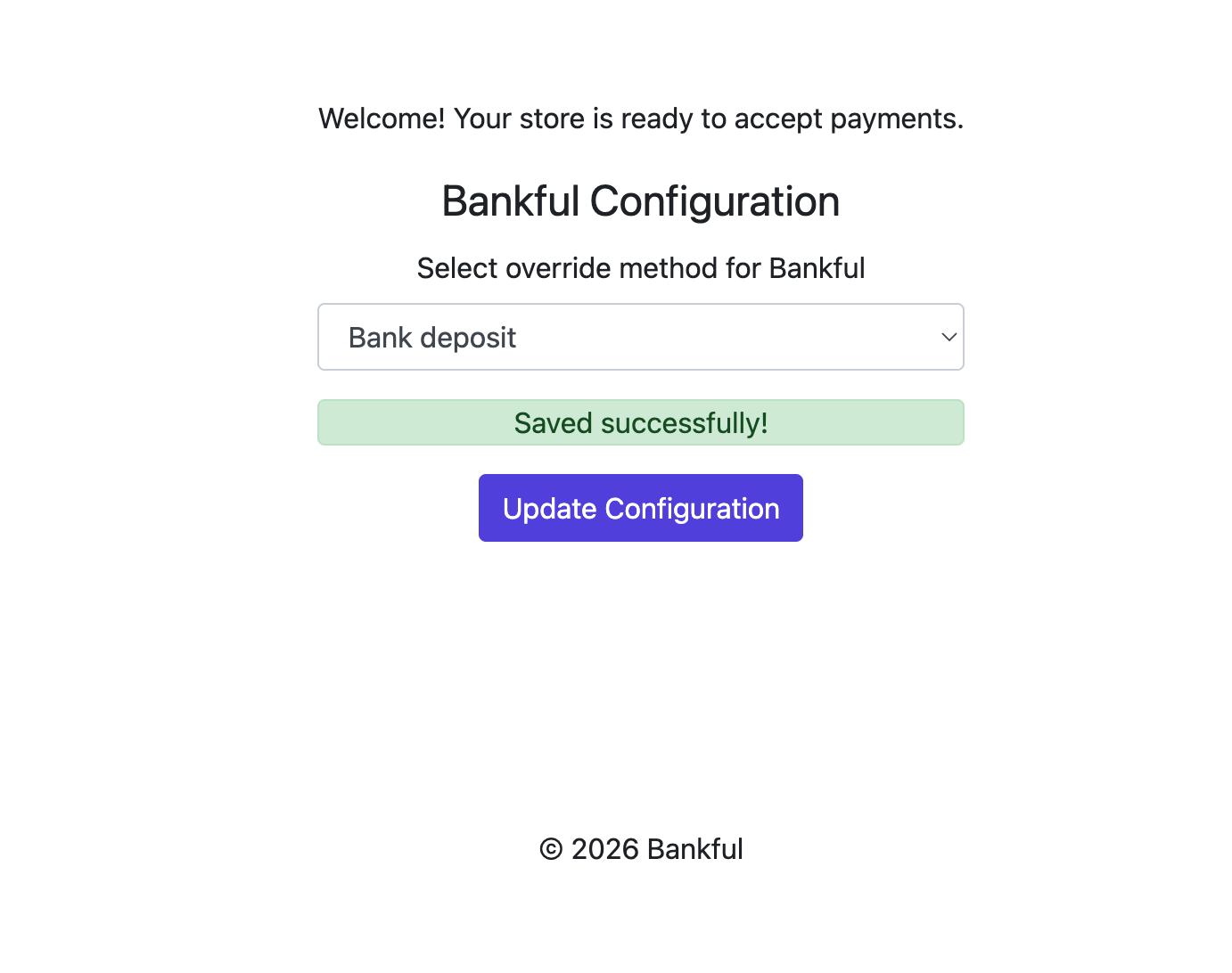
| 💡 Pro Tip: The override method determines how Bankful payment orders are categorized in your BigCommerce order management. “Bank deposit” is the most common selection. Contact your Bankful representative if you’re unsure which to choose. |
✅ Installation Complete
The Bankful Payments app is now installed and connected to your BigCommerce store. Your customers will see the Bankful embedded payment widget at checkout, supporting credit and debit cards, Google Pay, and US ACH bank transfers.
Related Article: Bankful Payment Widget: Customer Checkout Guide to see exactly what your customers will experience at checkout.
Powered by Bankful — PCI Level 1 compliant. Fully encrypted. No redirects.
Still have questions?
If you’re an existing Bankful merchant, the fastest way to get help is to submit a support ticket — our team monitors the queue continuously and you’ll get a tracked, documented response.
🎫 Submit a ticket: https://support.bankful.com/bankfuls-support-ticketing-system/
Prefer to reach us another way? We’ve got you covered:
💬 Live chat — click the chat icon in the bottom right corner of this page
📧 Email: [email protected]
📞 Phone: 888-882-9494
Last updated: August 2026